Add MLS stats from InfoSparks
Bring real numbers from your MLS, like median price and days on market, into a market update or CMA.
Before you start, have these ready
- Your MLS login
- Brand Launch open in another tab
Step 1: Open InfoSparks from your MLS
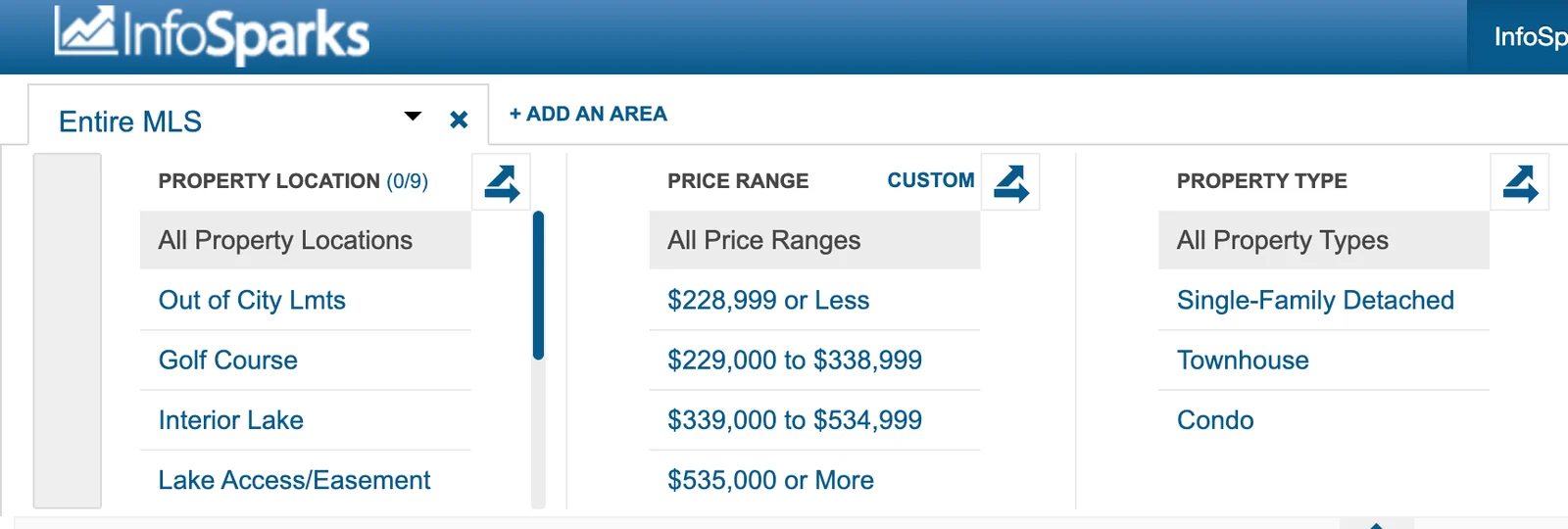
Log in to your MLS the way you normally do. Look for the app called InfoSparks and click it. On many MLS home pages it’s a square with blue bars on it.
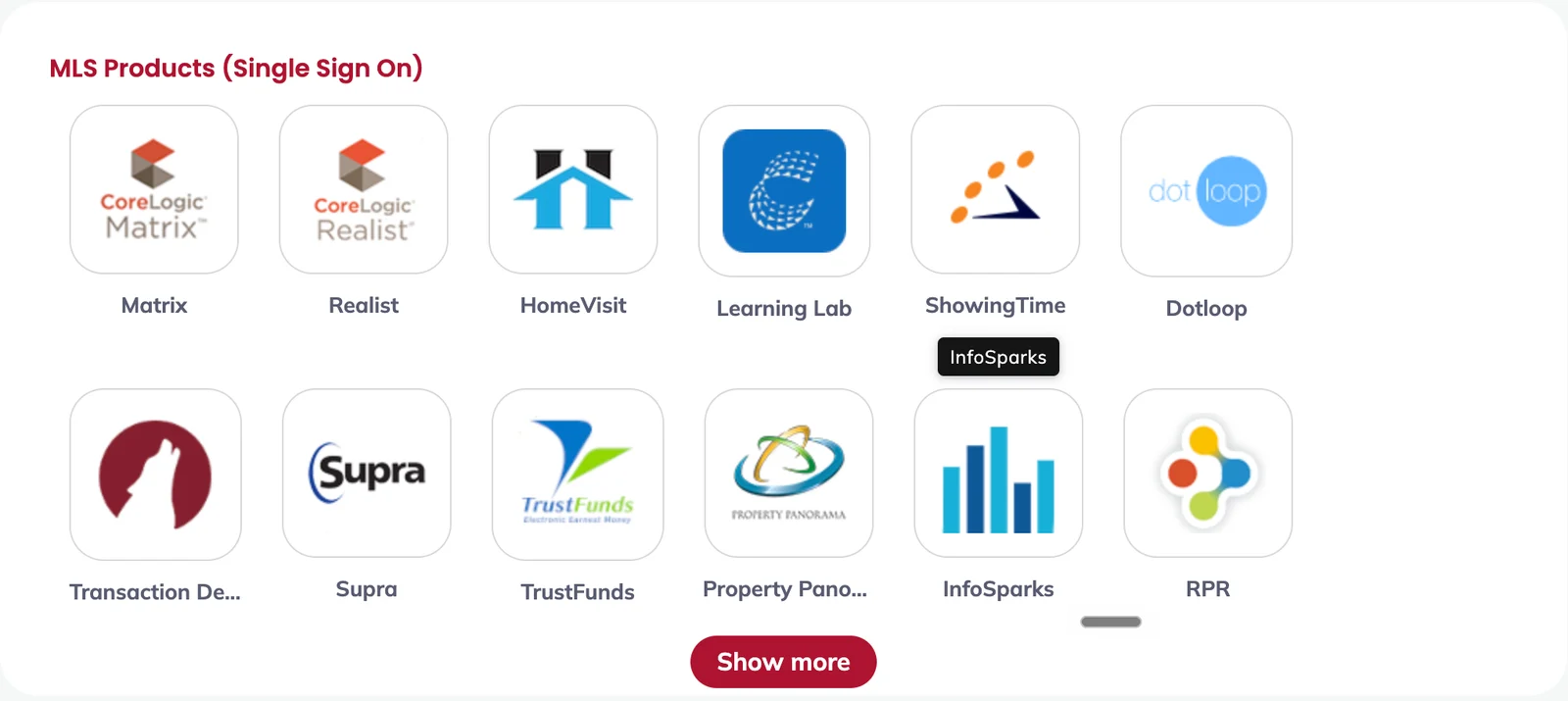
Tap the picture to see it bigger Using Matrix instead? Click LINKS at the top of the page, then click InfoSparks in the list.

Tap the picture to see it bigger 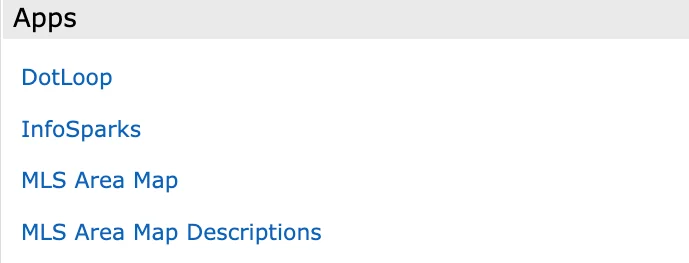
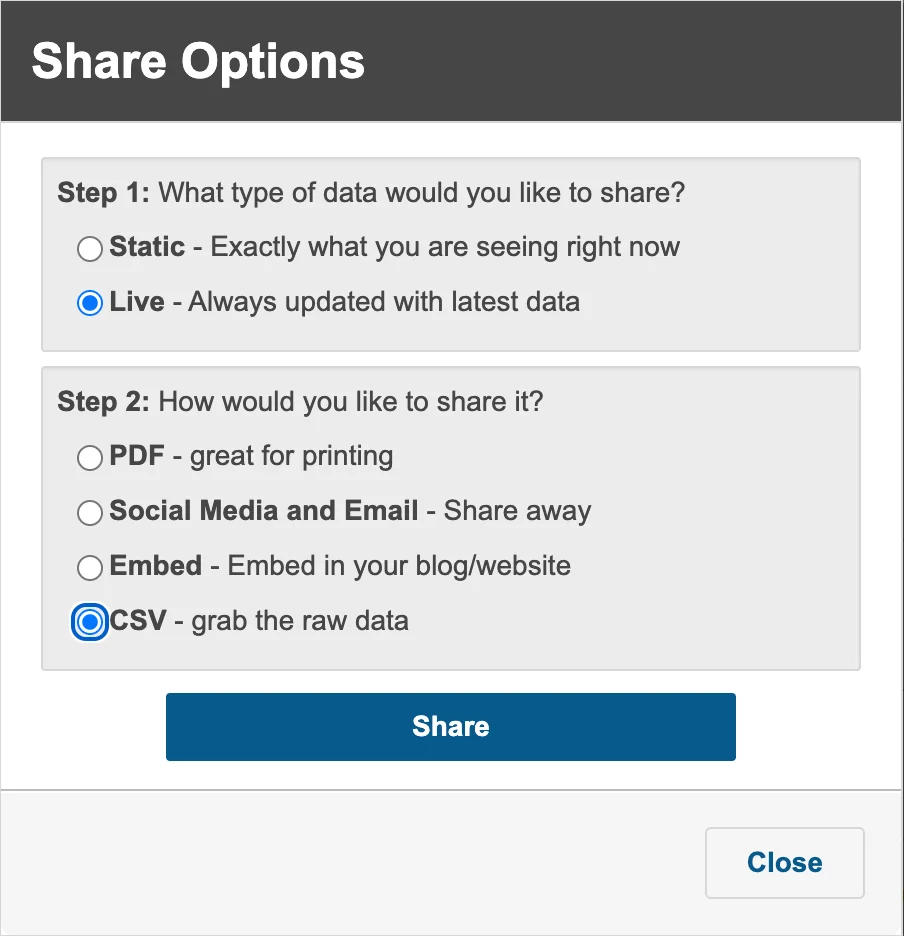
Tap the picture to see it bigger Step 5: Choose Live and CSV, then click Share
In the box that opens:
- Under Step 1, click Live (“Always updated with latest data”).
- Under Step 2, click CSV (“grab the raw data”).
- Click the blue Share button.
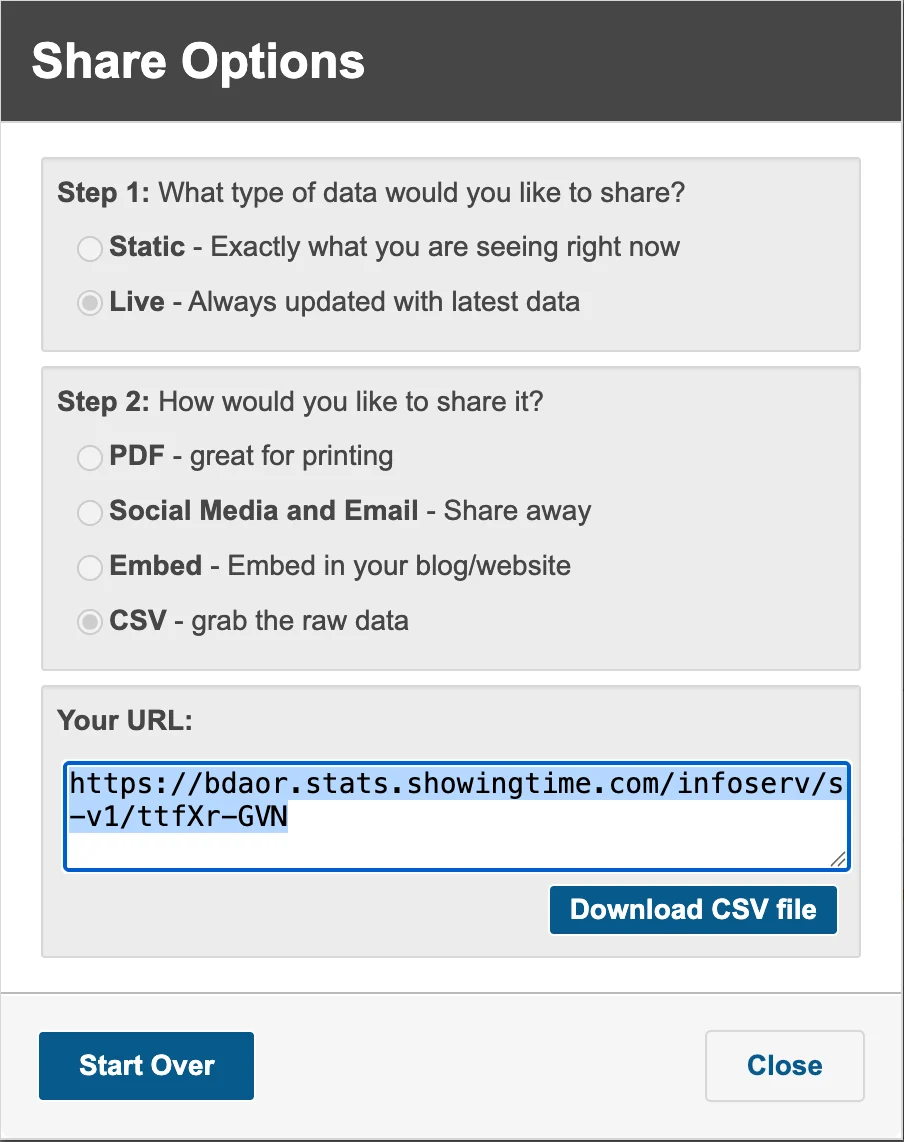
Tap the picture to see it bigger Step 6: Copy the link
A web address appears under Your URL, already highlighted in blue. Copy it: right-click it and choose Copy.
Keyboard shortcut: Command + C on a Mac, Ctrl + C on Windows. You don’t need to click Download.
Tap the picture to see it bigger Step 7: Paste it into Brand Launch and say what you want
Go to Brand Launch and click Create content. Click in the message box, paste the link (right-click, then Paste), and tell it what to make.
Type something like thisMake me a market update postcard for Osage Beach using these numbers: (paste your link here)
Step 8: Want more than one stat? Repeat for each
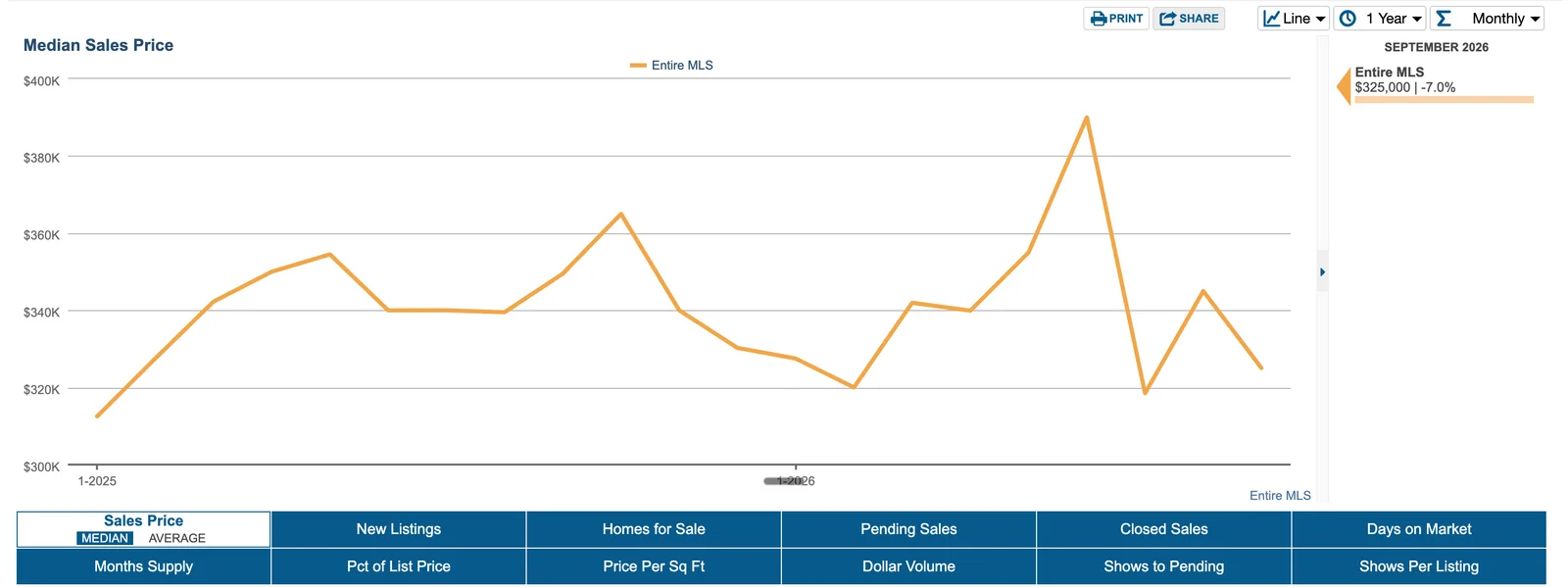
Each link holds one stat. For more, go back to InfoSparks, click the next stat, and do the Share steps again. You can paste up to 3 links in one message. Put each one on its own line.
Type something like thisMake a one-page market report for Camdenton using these 3 stats: (median sales price link) (days on market link) (months supply link)
That’s it
Keep your links in a note on your phone or computer. Because they’re Live, next month you can paste the very same links and get the new numbers.
Mailing a market update every month? Save a link on your list and it’s read fresh before every send. See Set up automatic mailings.
Next, try
- Make a market updateA postcard, letter or post that tells your farm or sphere what the market is doing.
- Make a CMAGrab your comps from the MLS, write your pricing thoughts in plain English, attach, and send.
- Other ways to add market statsNo InfoSparks? Use a market report PDF, paste the numbers, or let Brand Launch use your board’s stats.
Still stuck?
Send an email and tell us what you were trying to do. A screenshot helps, but it's not required. A real person will write back.
Email john@brandlaunch.vip