Download, print or share a design
Which button to use for printing, emailing, texting or posting.
About 3 minutes · 3 steps
Step 1: Pick the button for what you’re doing
- Printing, or attaching to an email: click Download PDF.
- Posting or texting a picture: click Download PNG.
- A page with more than one page (like a CMA): click PDF, print quality to print, or PDF, email size for a smaller file to email.
- Saving it as one you liked: Approve saves it and downloads a picture of it.
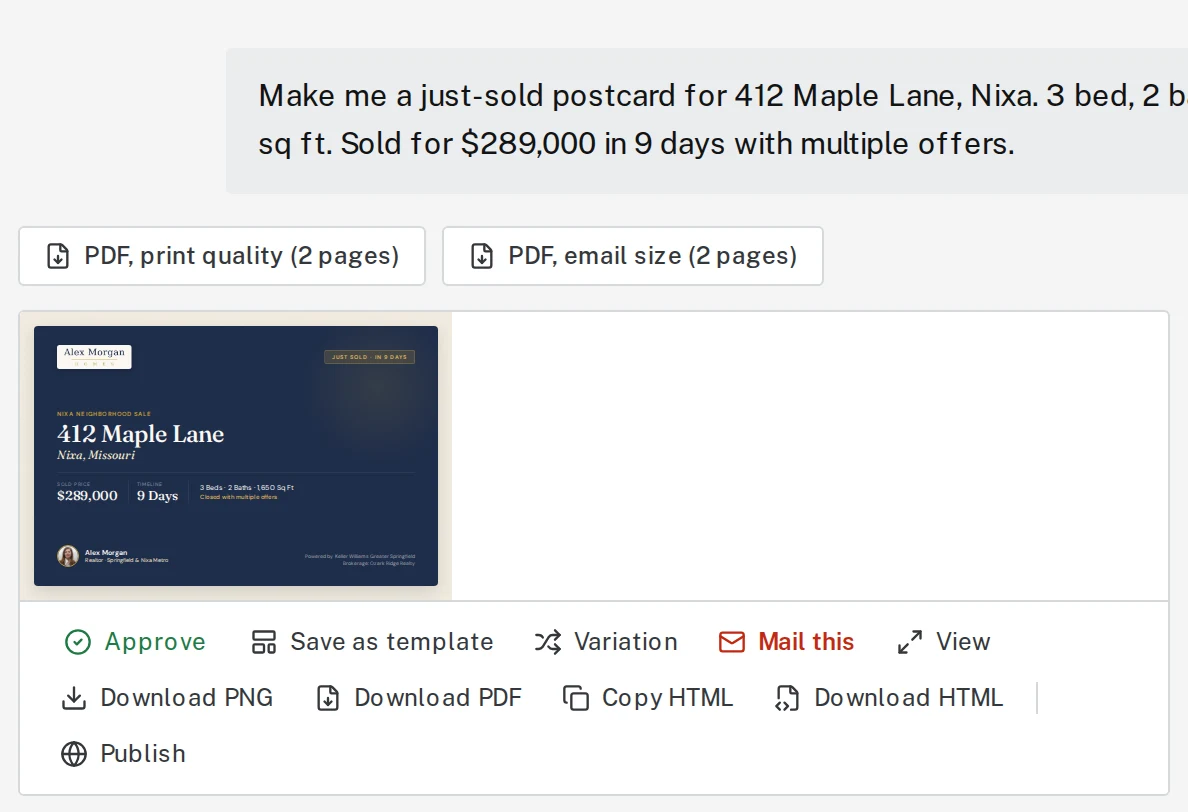
Tap the picture to see it bigger Step 2: Find the file on your computer
Downloads go to your Downloads folder. On a Mac, open Finder and click Downloads. On Windows, open File Explorer and click Downloads. On a phone, check your Files app or your photos.
Step 3: To print, open the PDF and print it
Double-click the PDF to open it, then choose File, then Print (or press Command + P on a Mac, Ctrl + P on Windows). For best results, set the scale to “Actual size” or 100%.
Next, try
Still stuck?
Send an email and tell us what you were trying to do. A screenshot helps, but it's not required. A real person will write back.
Email john@brandlaunch.vip