Change your logo, colors or headshot
Upload a new logo or headshot, or adjust your colors and voice.
About 3 minutes · 3 steps
Step 1: Click My brand, then Change something
Click My brand, then Change something at the top right.
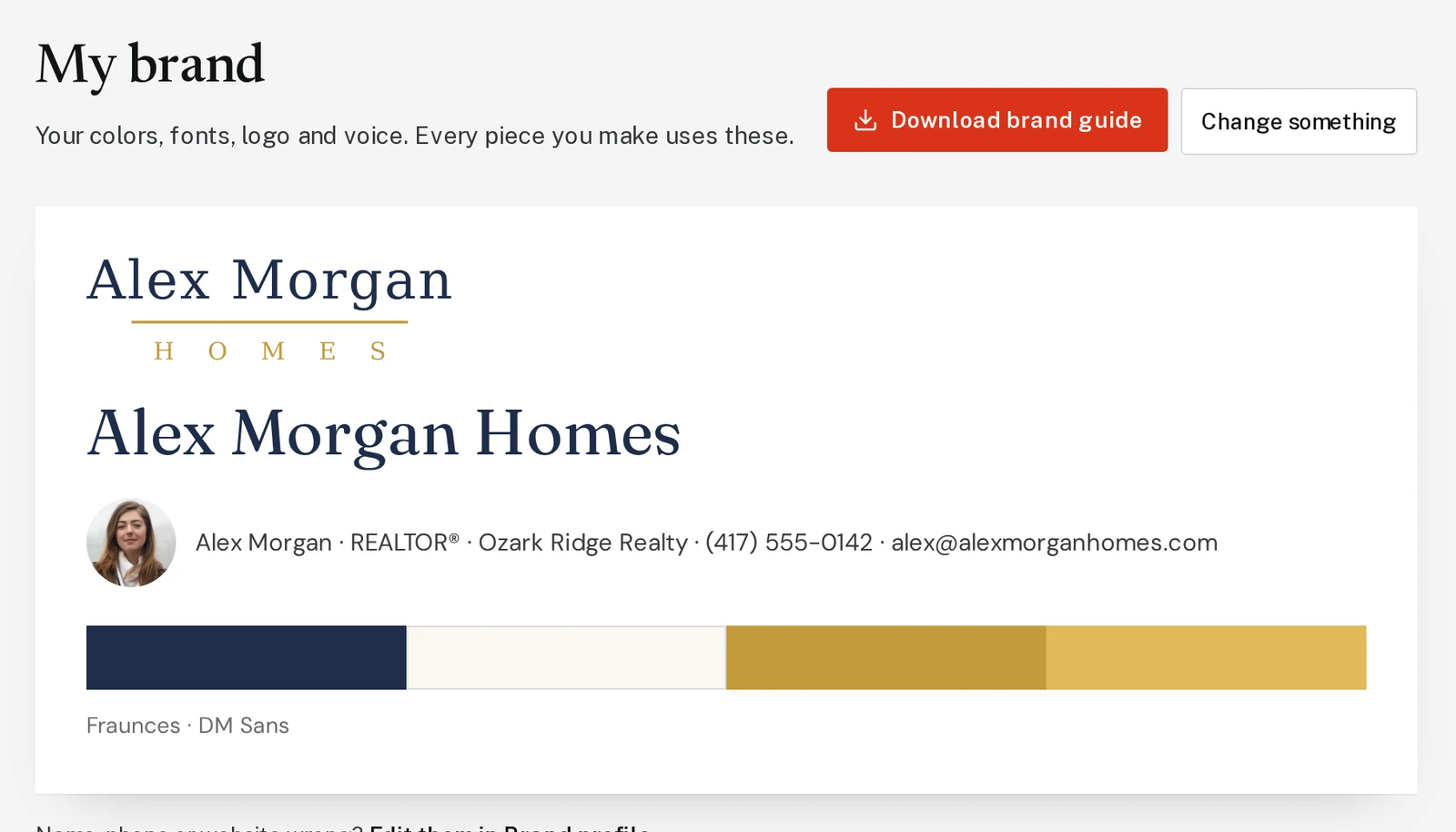
Tap the picture to see it bigger Step 2: Say what to change
Type what you’d like, or click one of the suggestions like Upload my logo or Change my brand colors.
For a new logo or headshot, click the paperclip, pick the picture, and say what it is.
Type something like thisThis is my new headshot.
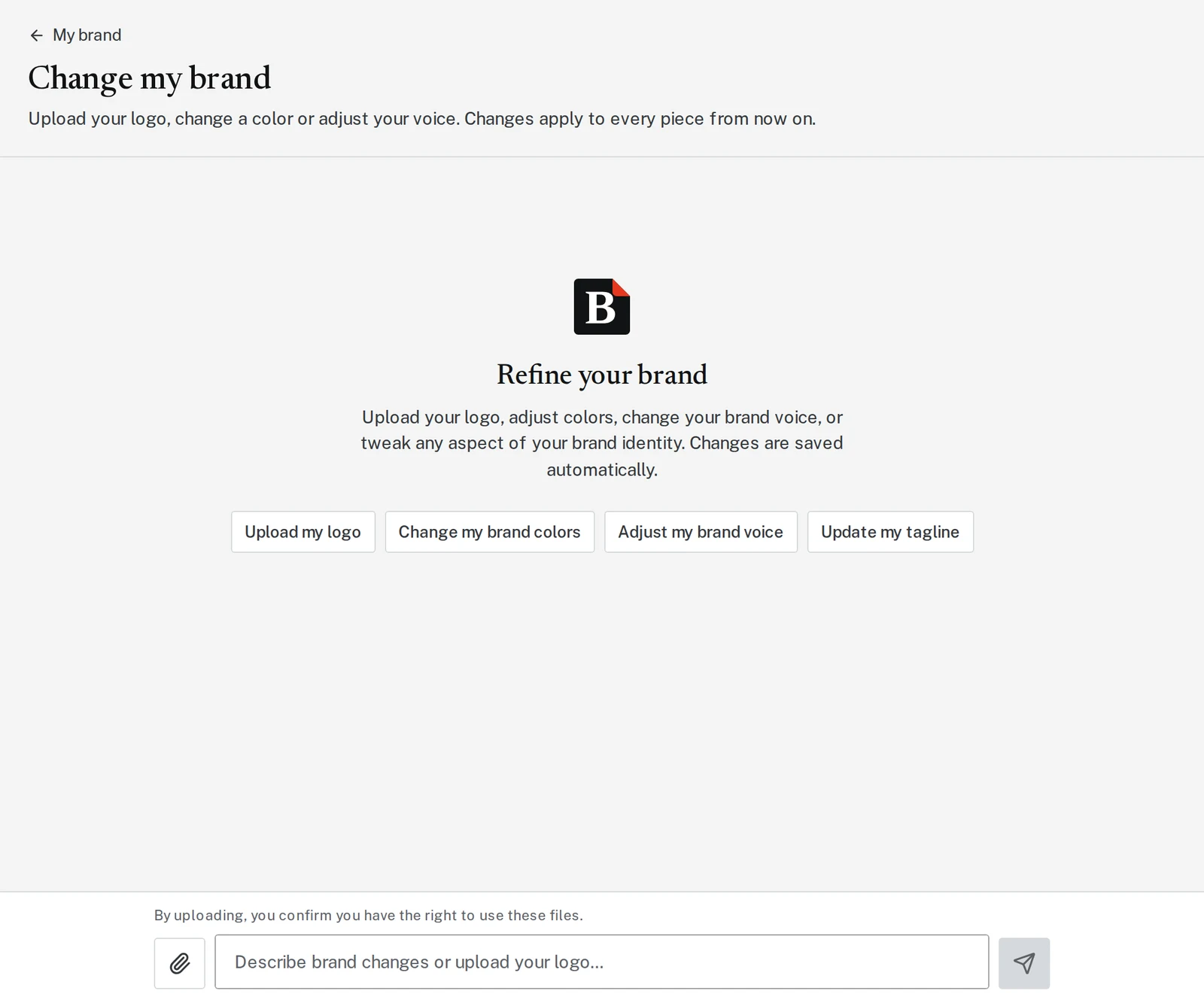
Tap the picture to see it bigger Step 3: Look for “Brand guide updated”
When you see Brand guide updated, everything you make from then on uses the change.
Next, try
Still stuck?
Send an email and tell us what you were trying to do. A screenshot helps, but it's not required. A real person will write back.
Email john@brandlaunch.vip